Windows install
Native Windows installer for Report Anonymizer. Bundles the embedded
Python runtime, llama-server.exe (CPU / CUDA / Vulkan variants),
pandoc, pdftotext and everything else needed to run the pipeline
offline. Tested on Windows 10 (1809+) and Windows 11.
Download
Report-Anonymizer-Setup-x64-1.0.0.exe · 338 MB
The installer is unsigned today (no Authenticode certificate); SmartScreen may flag it on first run with a "Windows protected your PC" dialog. Click More info → Run anyway to proceed. The SHA256 of every release is published in the GitHub Release page so the file can be verified out-of-band.
What the wizard does
The Setup wizard runs entirely without admin rights and writes everything under your user profile:
| Path | Content |
|---|---|
%LOCALAPPDATA%\Programs\report-anonymizer\ |
Install root: embedded Python, llama-server.exe, pandoc, pdftotext, GUI launcher |
%APPDATA%\report-anonymizer\ |
Server preset (server.yml), preferences (app_settings.yml), Hugging Face token, installer sentinel |
%LOCALAPPDATA%\report-anonymizer\ |
Downloaded GGUF models, transient cache |
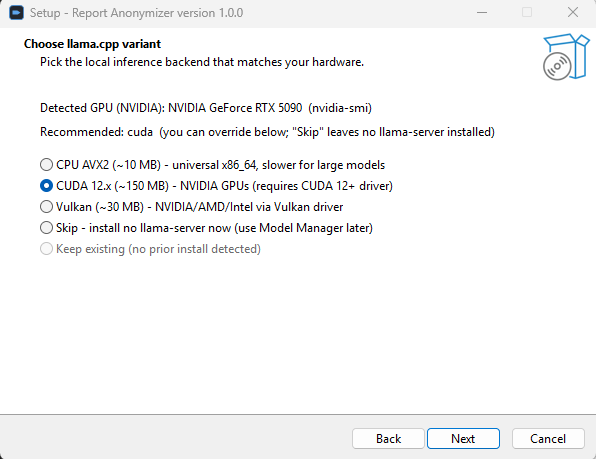
1 — Pick the llama.cpp variant
nvidia-smi, then PowerShell Get-CimInstance, then legacy wmic. The recommended radio is preselected; you can override by clicking another row.Three real variants ship in the EXE:
- CPU (AVX2, ~10 MB) — universal fallback. Works on any x86-64 CPU, no GPU needed. Slower for the 4 B-parameter baseline (~30 s on the 5-PDF test) but plenty fast for occasional runs.
- CUDA 12.x (~150 MB) — NVIDIA GPUs with driver ≥ 535 (CUDA 12.0). Best throughput on the 4 B preset (4-5× faster than CPU).
- Vulkan (~30 MB) — NVIDIA / AMD / Intel via the Vulkan runtime. Pick this on AMD / Intel iGPU or when CUDA isn't available.
Two extra radios:
- Skip — install Report Anonymizer without any llama-server. The GUI's Configure deployment page lets you point at an external server later (BYOS mode).
- Keep existing — appears when the installer detects a previous install of one of the three variants. Preserves whatever variant was already on disk; the recommended variant is still pre-selected if it differs from the existing one.
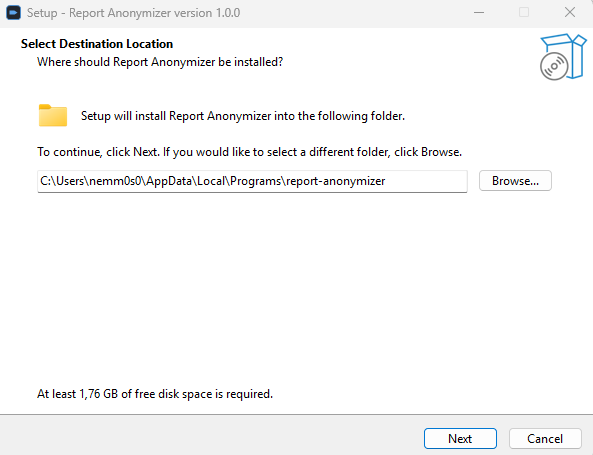
2 — Install to default location
The default path is %LOCALAPPDATA%\Programs\report-anonymizer\,
which doesn't need admin rights. You can override it but the GUI
still expects the supporting folders under %APPDATA% and
%LOCALAPPDATA%.
3 — First launch
After the wizard finishes, Report Anonymizer opens automatically. Then:
- The first-run wizard detects the bundled
llama-server.exevia the installer sentinel (%APPDATA%\report-anonymizer\.installer_choice.json), skips the "install llama-server" step entirely and lets you pick a preset + download the GGUF model in one click. - The Server panel → Configure deployment dialog now exposes a Backend dropdown (CPU / CUDA / Vulkan) on Windows, so you can switch backend after the install without re-running Setup.
- The GUI lives in
%APPDATA%\report-anonymizer\(config) and%LOCALAPPDATA%\report-anonymizer\(downloaded models and cache).
Uninstall
Use Settings → Apps → Installed apps → Report Anonymizer → Uninstall. The uninstaller asks one question:
Remove user data too?
- Yes — also delete settings and downloaded models (
%APPDATA%\report-anonymizer+%LOCALAPPDATA%\report-anonymizer).- No (default) — keep them so a future reinstall can reuse the models without re-downloading. The install folder is removed regardless of this choice.
Silent uninstall (/VERYSILENT) defaults to No (keep user
data), matching the conservative behaviour of every other Windows
uninstaller.
Build from source
The installer is produced by packaging/windows/build.ps1. On a
Windows 11 dev box with PowerShell 5.1 / 7.x:
cd packaging\windows
.\build.ps1                       # full build, ~18 min cold
.\build.ps1 -SkipBootstrap        # ~5 min when the tooling cache exists
.\build.ps1 -Clean                # cold rebuild from scratch
.\build.ps1 -Lean                 # CPU-only build, ~225 MB EXE
The script bootstraps 7zr.exe, Inno Setup 6 and MinGW UCRT into
packaging\windows\build-cache\tools\, downloads the Python embed
ZIP, the WeasyPrint Windows bundle, poppler-windows and the three
llama.cpp variant ZIPs, assembles the staging tree under
packaging\windows\staging\app\, then runs ISCC to produce
packaging\windows\dist\Report-Anonymizer-Setup-x64-<version>.exe.
Use pwsh -ExecutionPolicy Bypass -File .\build.ps1 if PowerShell
refuses to run the script under a restricted Execution Policy.